Animations add motion to anything on the Bricks canvas. Drag one onto a heading, a card, an image or a whole section and it plays on your live site. There are 80 ready-made animations in 6 types, and every option is a prop you can change.
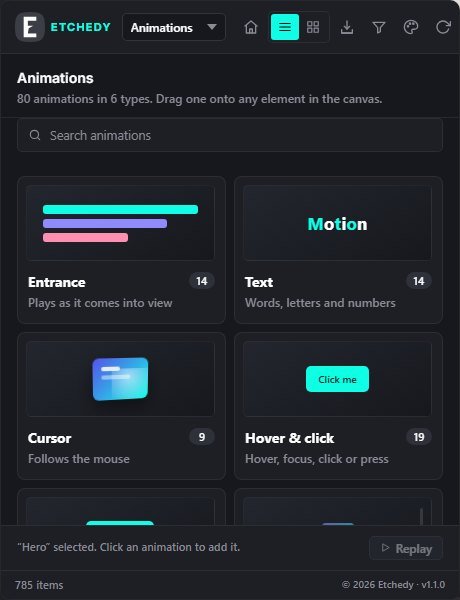
The six types
- Entrance (14). Plays as the element comes into view: fade up, fade down, slides, zoom, flip and more.
- Text (14). Words, letters and numbers: words rise, letters rise, mask reveal, typewriter, scramble, decode, highlighter, underline and count up.
- Cursor (9). Follows the mouse: tilt, magnetic, spotlight, coloured light, cursor bubble, drag cursor and hover zoom.
- Hover and click (19). On hover, focus, click or press: lift, grow, press, glow, pulse, bounce, shake, ripple, shine and more.
- Loop (9). Keeps moving: float, breathe, heartbeat, spin, wiggle, glow pulse, shine and marquees.
- Scroll (15). Moves with the page: parallax, turn, grow, fade, scale, straighten, focus, slide and unroll on scroll.
What you need
- Bricks.
- Bricksed Pro. Animations are part of Pro; the free edition does not include them.
How it works
- Open AnimationsIn the Bricksed panel, choose Animations and open a type.
- Drag it onto an elementOr select the element and click the animation. See Add and tune an animation.
- Tune itEvery option, from the effect to when it plays, is a prop of the animation component.
Motion that respects visitors
Visitors who ask their device for less motion see the element in place without the movement.