Facet Pro turns any list on your site into one visitors can filter: a blog, a shop, a directory or any content type of your own. A guided wizard in the Bricksed panel picks the content, the filters, the cards and the look, then you paste the result into Bricks as normal components you can restyle like anything else. No code, no shortcodes.
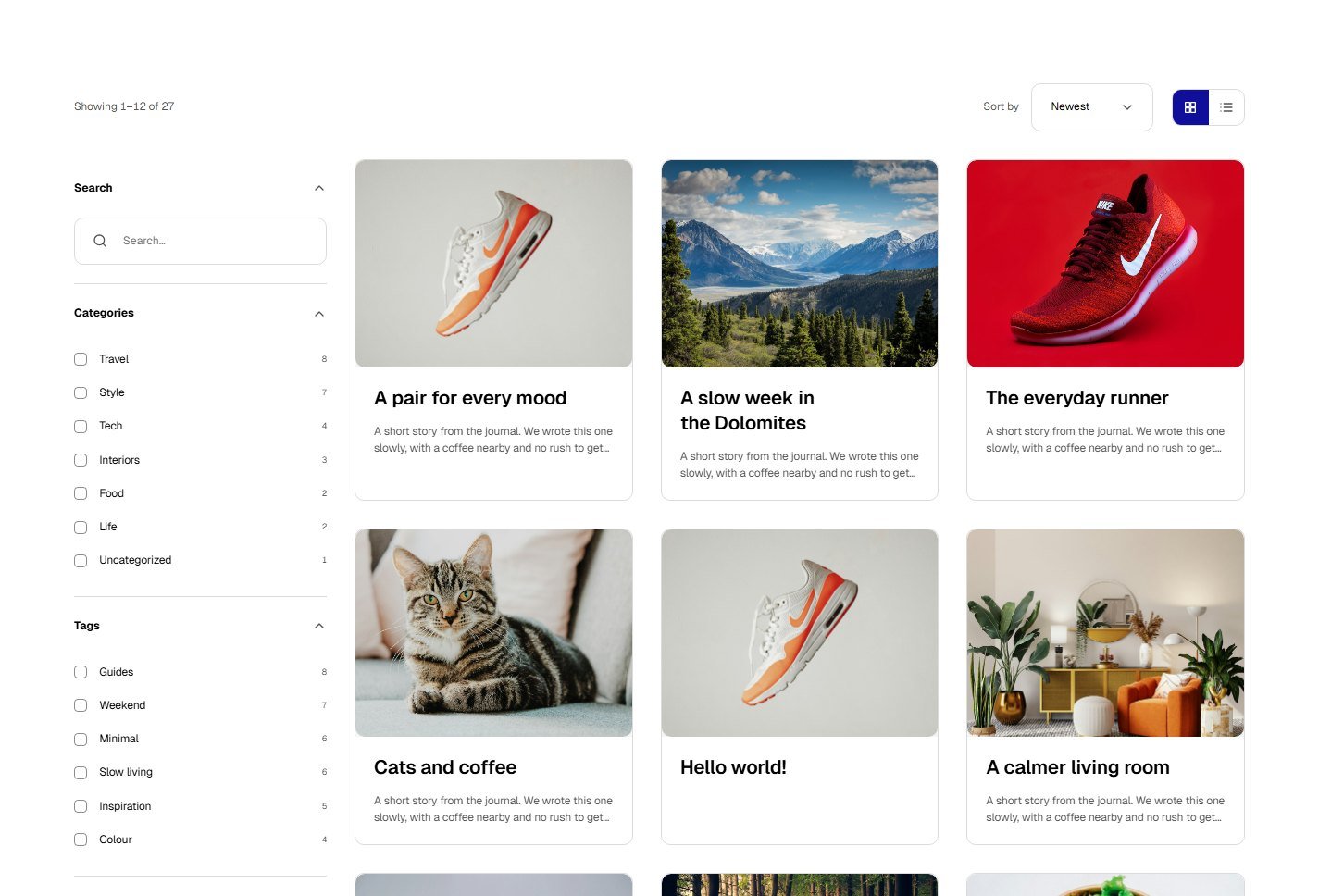
What you get
- Filters. Search box, tick-boxes, pick one, pills, colour dots, dropdown, slider (price, reading time and other numbers), star rating, on/off, dates and A to Z. Bricksed suggests them from the categories, tags and fields your items really have.
- Results. Cards in eight styles (image on top, image overlay, image beside, product, text only, magazine, polaroid, hover tile) or a card component you built yourself, plus a toolbar with the count, sorting and a grid or list switch, and pagination.
- Looks. One-click looks such as Fresh, Magazine, Night shop, Glass studio, Bold and Quiet. Colours, fonts and spacing follow your Automatic.css tokens.
- Real Bricks output. A section with a filters slot and a results loop. Every filter is its own component and the result card is one component, so changing it changes every card.
- Fast and shareable. Filters work with plain links and forms, so they work without JavaScript; with JavaScript the results update in place. Every filtered page has its own address you can share.
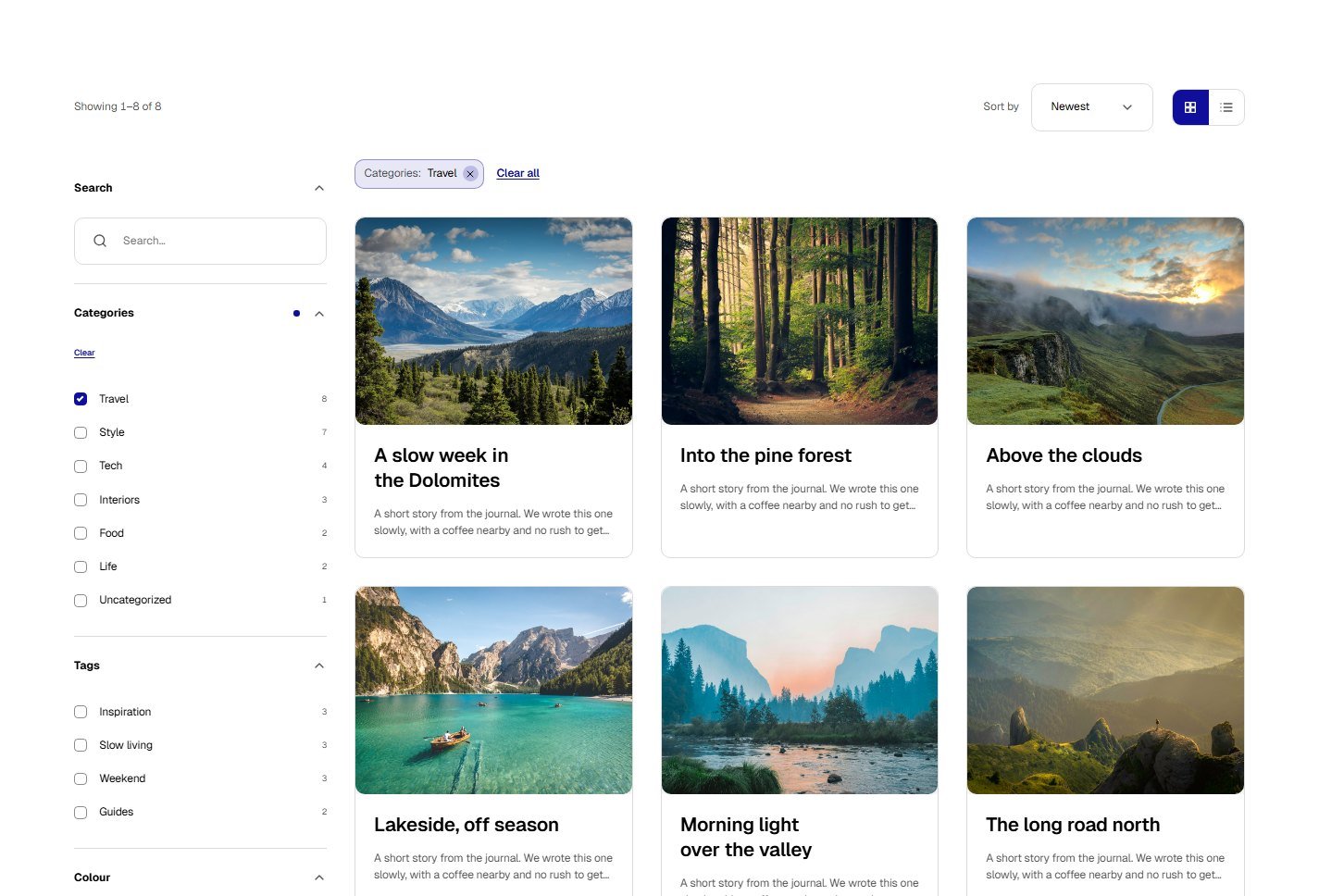
- The chip shows what is picked; Clear all resets every filter.
- The picked option, with a Clear link for this filter.
- Only the matching posts, with the new total in the toolbar.
What you need
- Bricks.
- Bricksed Pro. Facet Pro is part of Pro; the free edition does not include it.
- Automatic.css is recommended: the filters and cards read its tokens, and fall back to plain values without it.
How it works
- Build it in six stepsStart, Content, Filters, Cards, Look and Finish, with a live preview. See Build a filter view.
- Paste it into BricksOne click copies it; paste it on the canvas and save. See Paste it into Bricks and edit it.
- Make it yoursRestyle any part in Bricks, or reopen the view in the wizard and copy it again.
Your views are saved
The wizard keeps every view you build under Your filter views, so you can edit it or copy it to another page later.