
 Compare Features LandingLanding page, 1 page
 Flowline SaaS LandingLanding page, 1 page
 Prismo Creative AgencyCreative, 1 page
 Velour Car DetailingLanding page, 1 page
Build a filter view in six steps
In Bricks, open the Bricksed panel and click the Facet Pro button (the filter icon) in the panel header. The wizard opens with a live preview of your real content on the right; it updates as you go, and the Phone, Tablet and Desktop buttons show it at each size. Click a finished step at the top to go back to it.
1. Start
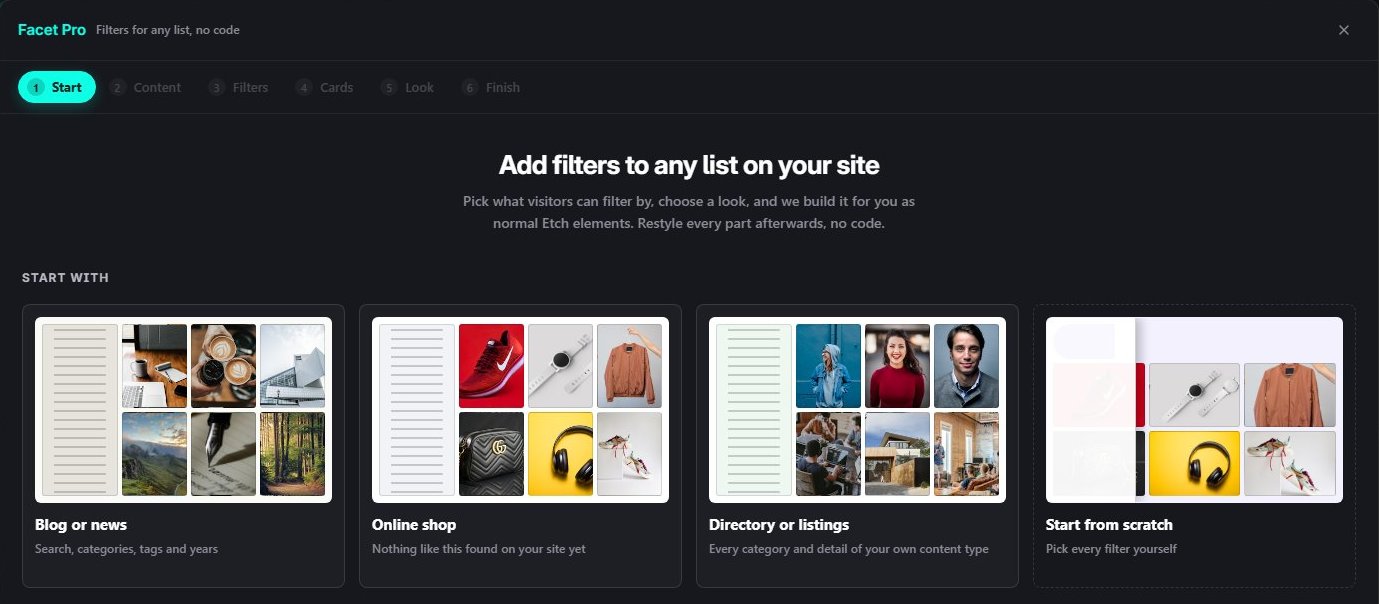
Pick a starting point: Blog or news, Online shop, Directory or listings or Start from scratch. Each one suggests filters from what your site really has, and tells you when it finds nothing to match. Views you built before are listed underneath.
2. Content
Choose what to filter: posts, pages, products or any content type, several at once if you like. Keep every item, only the ones you tick, or all but the ones you tick. Then name the view (only you see the name), set how many items show per page and which come first.
3. Filters
Bricksed detects your categories, tags and custom fields and lists the filters it suggests. Open a filter with its arrow to change how it looks (tick-boxes, pills, a dropdown, a slider and more), drag the dots to reorder, remove the ones you do not want, and add another at the bottom.
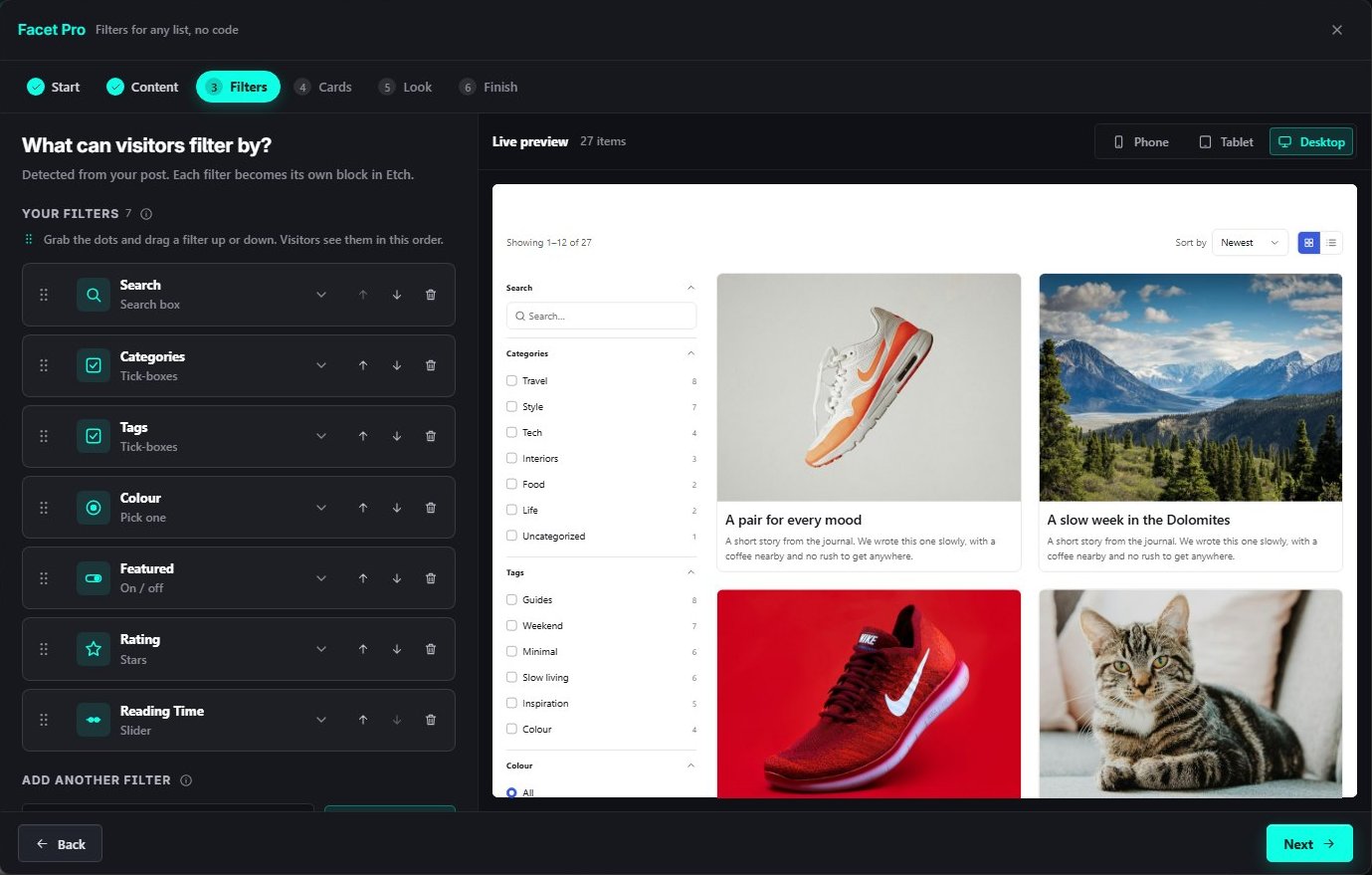
- Each filter, with its type underneath.
- Open it to change how it looks; arrows and dots reorder it.
- The live preview with your real posts.
4. Cards
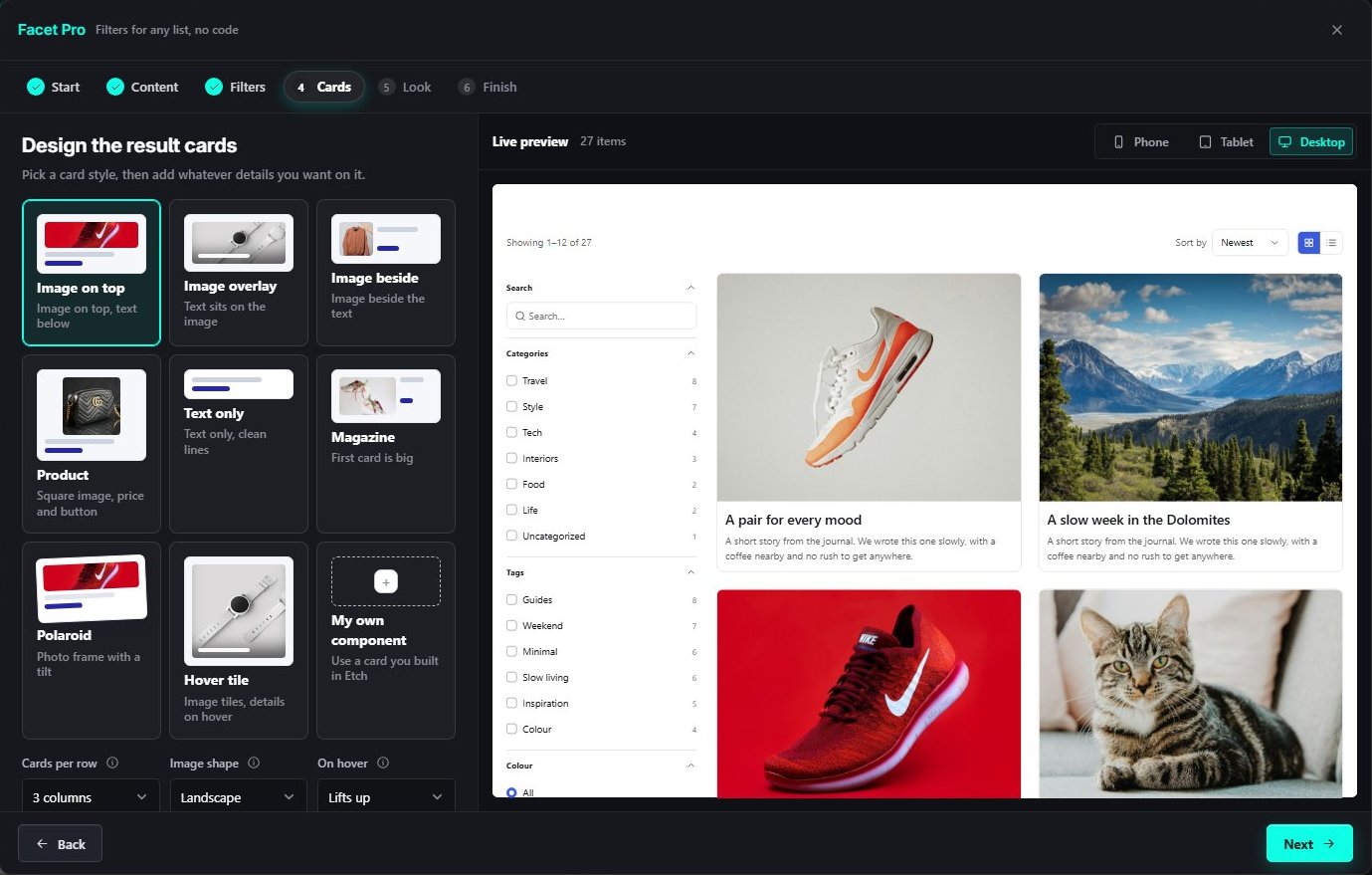
Pick a card style, or My own component to use a card you already built in Bricks. Set the cards per row, the image shape and the hover effect, and add the details you want on each card, such as the date, a price, a badge or a button.
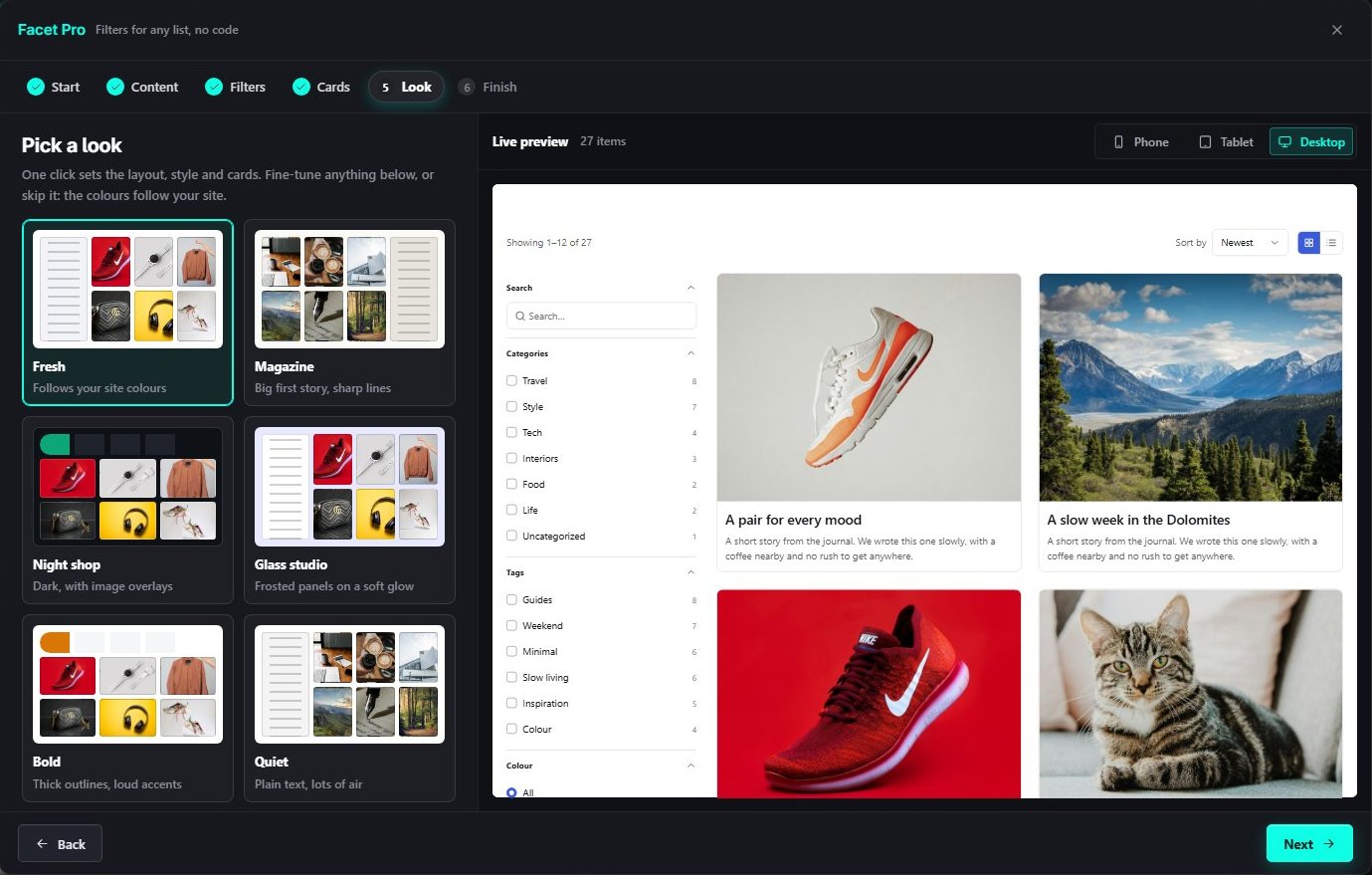
5. Look
One click sets the layout, style and cards together. Fine-tune anything below it, or skip the step: the colours follow your site.
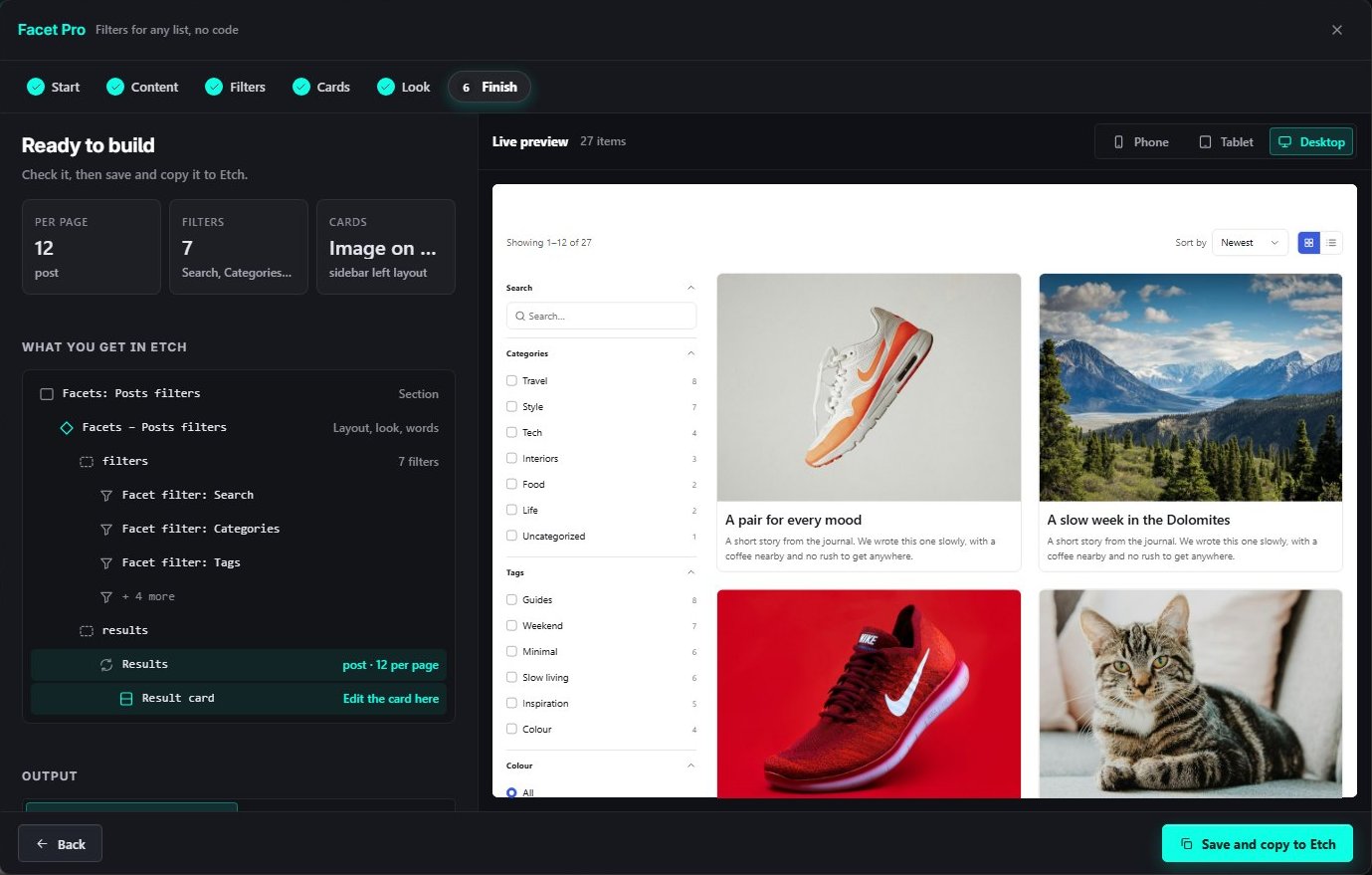
6. Finish
Check the summary (items per page, filters, cards) and What you get in Bricks, the structure you are about to paste. Under Output, keep Components (recommended) or choose plain elements. Then click Save and copy to Bricks.