

 Compare Features LandingLanding page, 1 page
 Flowline SaaS LandingLanding page, 1 page
 Prismo Creative AgencyCreative, 1 page
 Velour Car DetailingLanding page, 1 page
Open the library in Bricks
The Bricksed library lives inside the Bricks builder. You do not leave your page to use it.
Open the builder
- Go to PagesIn the WordPress admin open Pages (or any post type Bricks edits).
- Edit with BricksHover over a page and click Edit with Bricks. You can also click Launch Bricks in the admin bar while you are on the page.
- Wait for the builderThe Bricks builder loads with your Layers panel on the right and your page in the middle.
Open the Bricksed library
Look at the toolbar on the left edge of the builder. The purple E button is Bricksed. Hover it and its name appears: Bricksed Library. Click it and the library opens as a floating panel on top of your page.
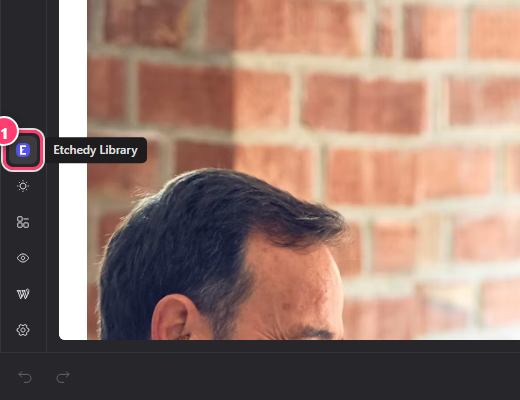
- The Bricksed Library button (the purple E) in the left toolbar of the builder.
Do not see the E button?
Check that Bricks is active under Bricksed → System status, then reload the builder. See system status and troubleshooting.
The panel at a glance
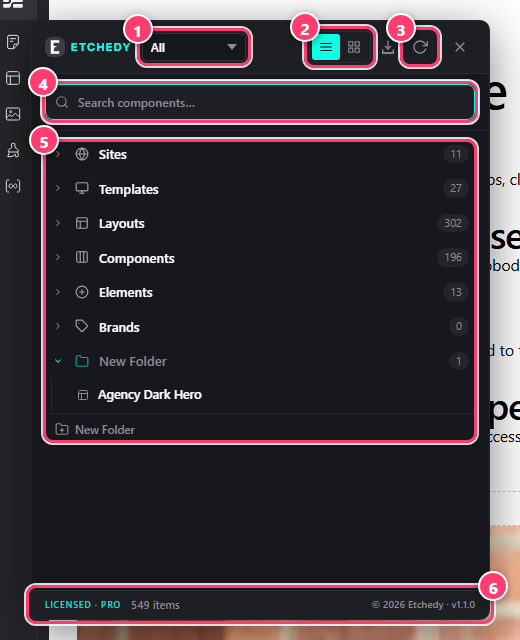
- The section filter. All shows every section, or pick Layouts, Elements, Components or Templates.
- Tree and Grid view buttons.
- Refresh the library.
- The search box.
- The library tree, grouped by section and category.
- Total items in the library, and your license status.
Close the panel with the × at its top right. Your page is not touched until you paste something into it.
Was this helpful?