

 Compare Features LandingLanding page, 1 page
 Flowline SaaS LandingLanding page, 1 page
 Prismo Creative AgencyCreative, 1 page
 Velour Car DetailingLanding page, 1 page
Paste it into Bricks and edit it
Paste it
After Save and copy to Bricks the view is on your clipboard. The same message you see when you copy a pattern confirms it, on top of the Facet Pro window: press Ctrl + V (⌘ + V on a Mac) in the editor. Close Facet Pro, click the canvas where the view should go, paste and save the page.
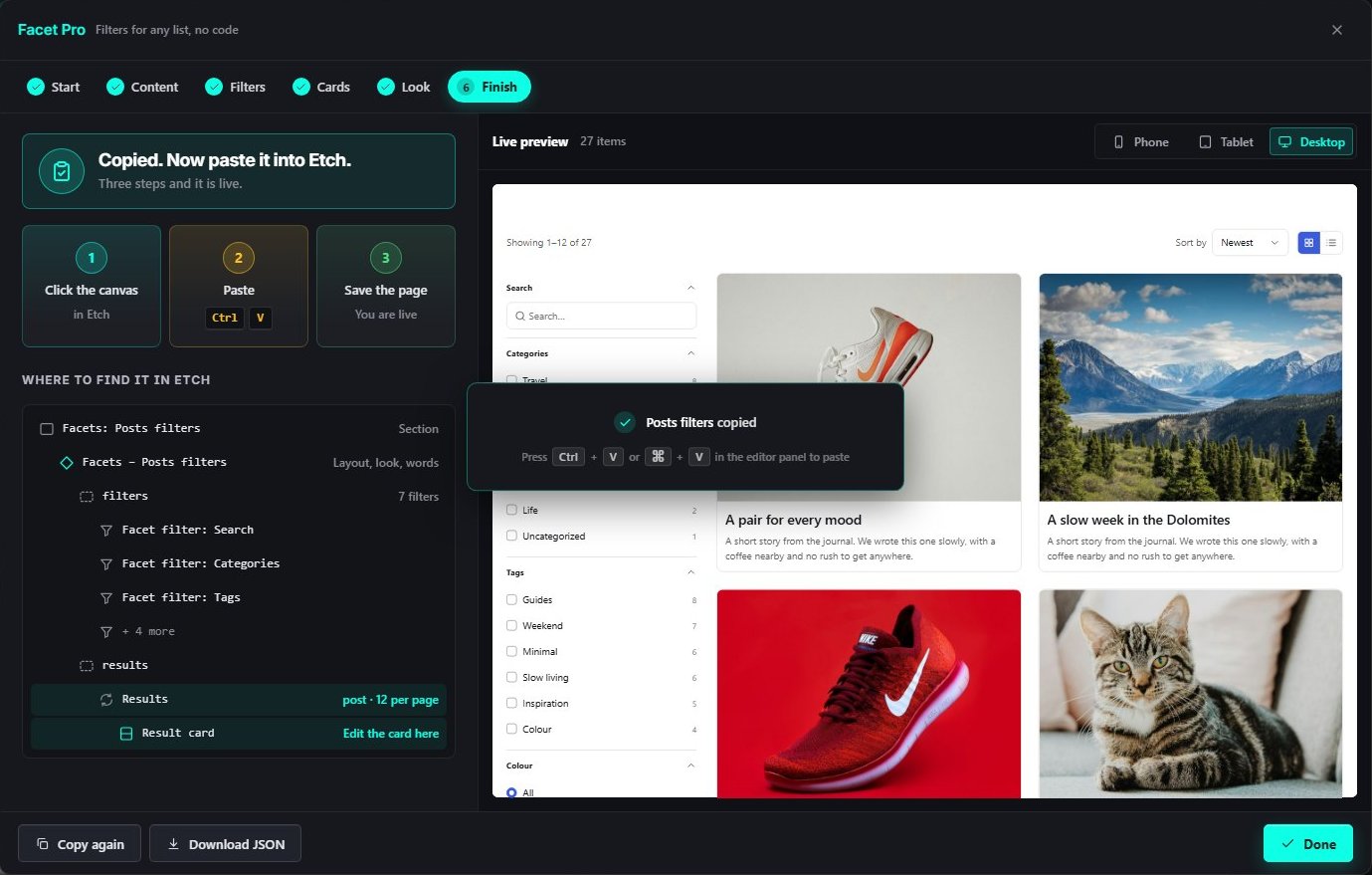
- The view is saved and copied.
- Three steps: click the canvas, paste, save the page.
- The message, the same as for patterns.
- Where each part sits in Bricks.
- Copy again or Download JSON.
What lands in Bricks
A section named Facets: your view. Inside it is the Facets component (layout, look and wording), a filters slot with one component per filter, and a results slot with the loop and the Result card. Edit the card component once to change every card; select a filter to change its own options.
Edit, copy again or delete
Open Facet Pro again: the Start step lists Your filter views. Edit reopens a view in the wizard, Copy to Bricks copies it again with the same confirmation, and Delete removes it. After you edit a view, paste the new copy in place of the old one.
Some browsers block the clipboard. Use Download JSON on the Finish step and paste the file contents into Bricks instead.
On the live site
Visitors pick filters and the results, counts and chips update in place. Each filtered page has its own address, so links and the back button work, and search engines and visitors without JavaScript get the same results through plain links and forms.
If something looks off
- No results. Check the Content step: the content type, and whether only ticked items are included.
- A filter has no options. None of your items has a value for that field yet.
- Colours or spacing. They follow your Automatic.css tokens. Change the tokens, pick another look in the wizard, or restyle the parts in Bricks.