

 Compare Features LandingLanding page, 1 page
 Flowline SaaS LandingLanding page, 1 page
 Prismo Creative AgencyCreative, 1 page
 Velour Car DetailingLanding page, 1 page
Add and tune an animation
Open the Animations view
In the Bricksed panel, choose Animations in the menu at the top (or open the Animations folder in the tree). Open a type such as Entrance, or search all 80. Hover a tile to see it play.
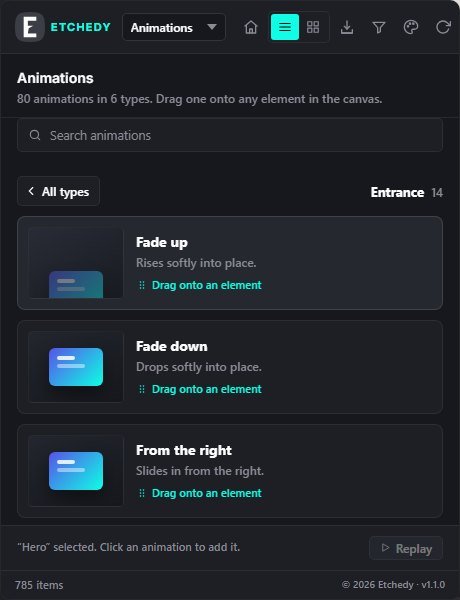
Add one
Drag a tile onto any element on the canvas. Or select the element first, on the canvas or in the layers, and click the tile. The panel shows the selected element and its animations at the bottom, with Replay to play them again.
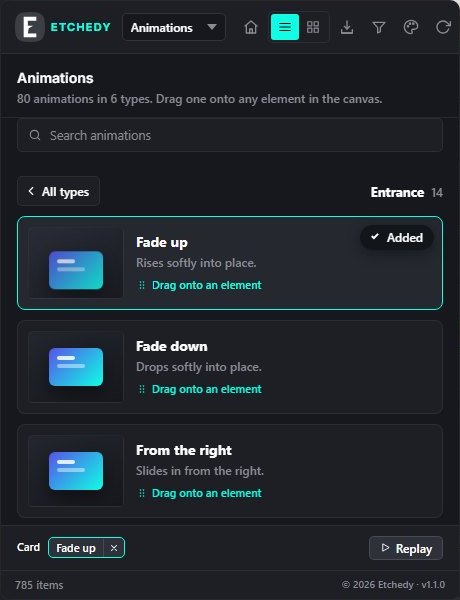
- The animation the element has is marked Added.
- The selected element and its animation; the cross removes it.
- Replay plays it again on the canvas.
Tune it
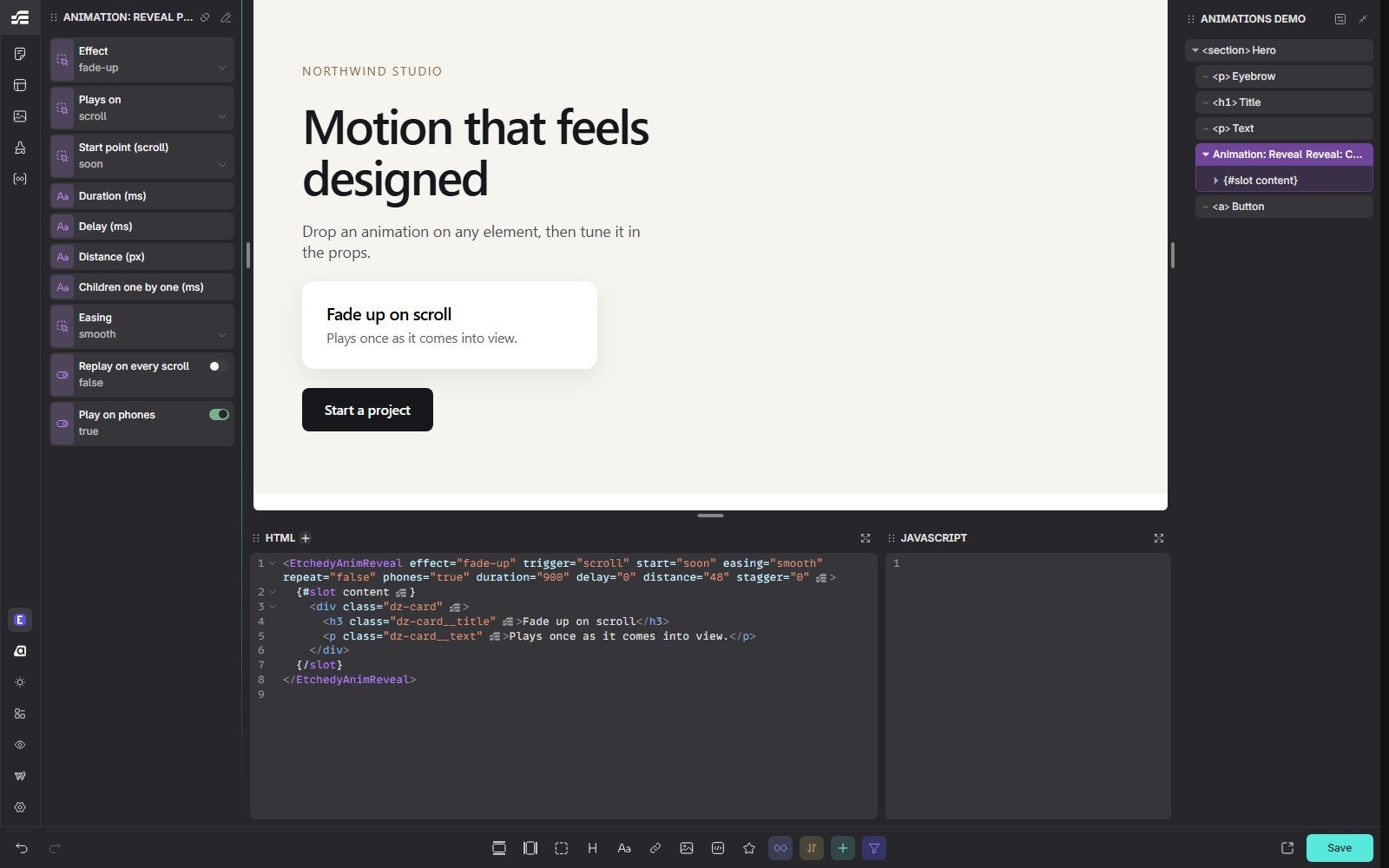
Bricksed wraps the element in an animation component, for example Animation: Reveal. Select it in the layers to see its props: the effect, when it plays (on scroll, on load, on hover or on click), the start point, duration, delay, distance, children one by one, easing, replay on every scroll and play on phones.
Switch, stack or remove
- Switch. Drop another animation of the same kind and it replaces the first one, for example Fade up becomes Zoom in. You never get two of the same.
- Stack. A different kind stacks on top, for example an entrance plus a hover effect.
- Remove. Click the cross on its chip in the panel, or delete the animation component in the layers. The element itself stays.
Animations run on the front end with a small script that only loads on pages that use them.